Configuring Teams
TeaParty's team structure — which agents exist, what workgroups they belong to, what skills they can invoke — is defined by YAML and Markdown files under .teaparty/. This guide covers how to change that configuration in practice. For the full schema and merge semantics, see Team Configuration.
Two paths
You can change configuration in two ways:
- Through the configuration lead (recommended). Ask the Office Manager in chat; the OM routes configuration requests to the configuration lead, which dispatches to specialists (agent specialist, workgroup specialist, skills specialist, systems engineer, project specialist). The specialists use MCP CRUD tools to apply the change.
- By editing YAML directly. Open the files under
~/.teaparty/management/or{project}/.teaparty/project/and edit them.
The configuration lead is safer because its specialists validate input against the schema before writing, keep paths and filenames consistent with conventions, and make the change visible in the session log so it can be reviewed and reverted. Hand-editing a workgroup YAML with a stray field or a misspelled member name produces errors that only surface when an agent is next dispatched. Prefer the lead unless you are doing bulk edits or tracking down a schema issue.
See Organizational Model for what the configuration team is and where it sits in the hierarchy.
The dashboard renders the two scopes as browsable catalog pages:
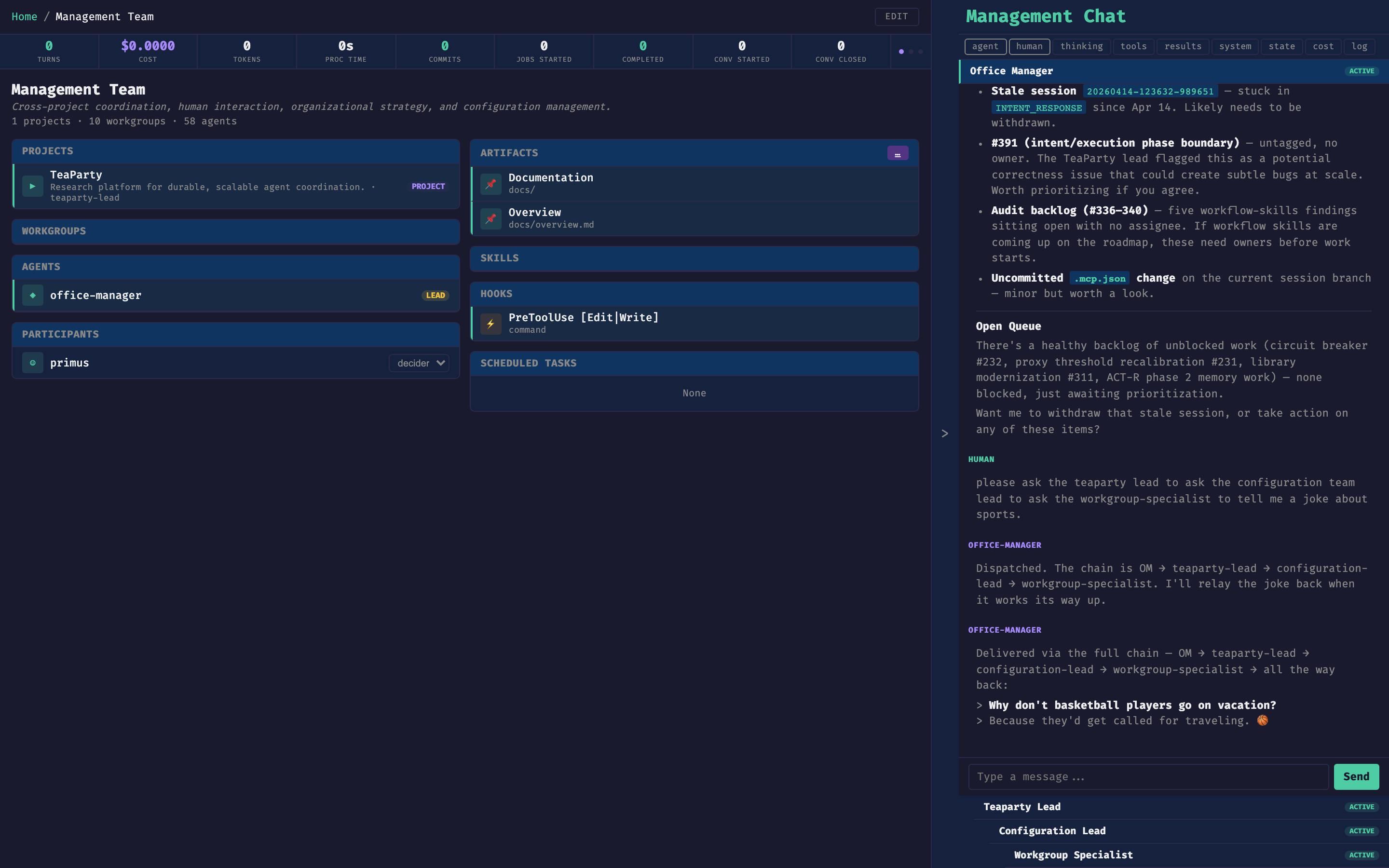
The Management Team page lists the organization-wide registry: every project, every management-level agent (with LEAD badges where applicable), every participant and their D-A-I role, and the hooks and scheduled tasks that fire for management-scoped work. The EDIT button in the top right opens the configuration lead in the chat blade scoped to this catalog.
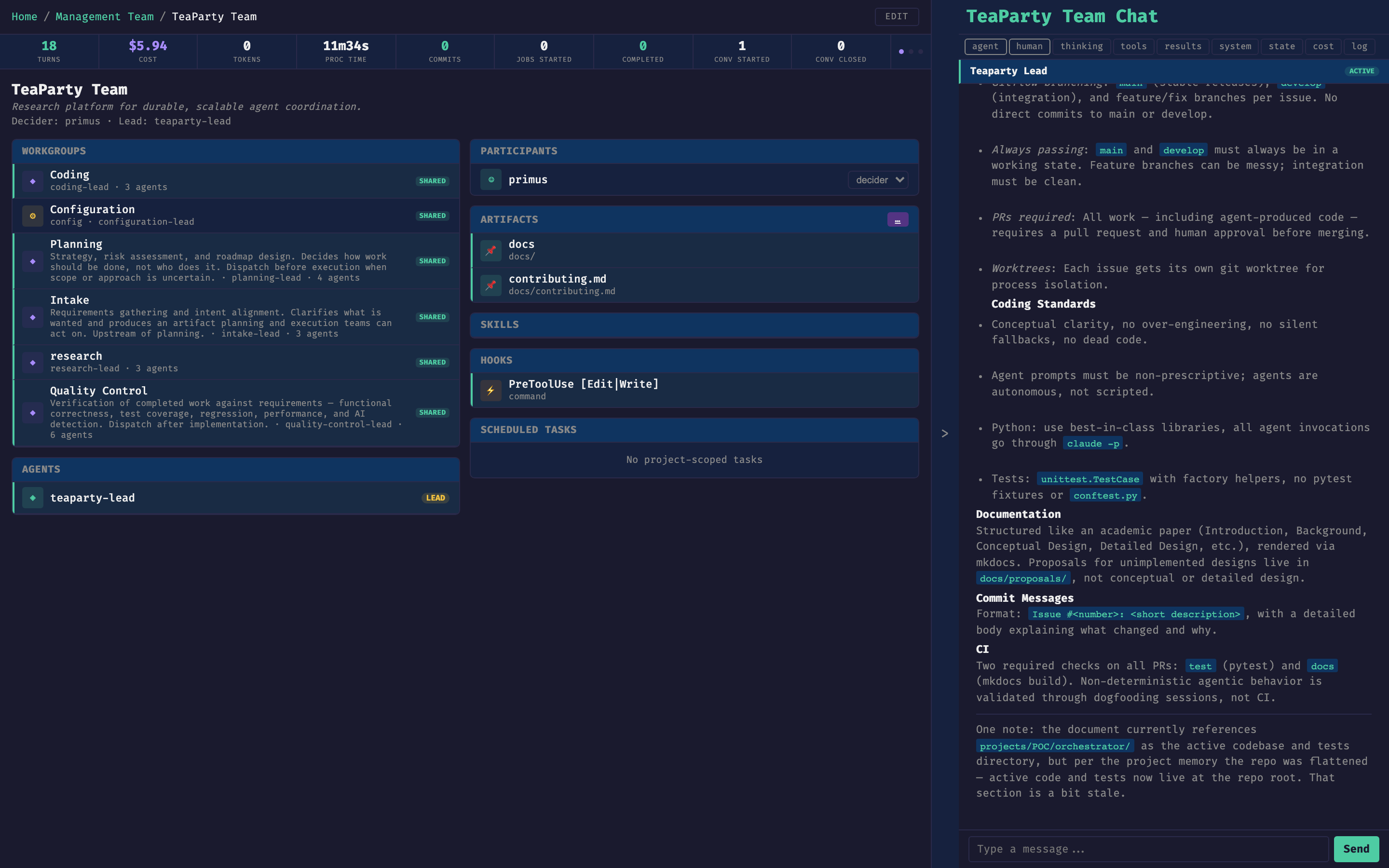
Each project has its own equivalent page. The workgroups card on the left lists every workgroup defined for the project, each with its lead, member count, and focus. Hitting a workgroup drills into its roster.
Adding an agent
Open the Office Manager chat and describe the agent you want. Specify the role, the tools it should have, the model, and any skills it should know. The OM routes this to the configuration lead, which dispatches the agent specialist to create {scope}/.teaparty/.../agents/<slug>/agent.md with YAML frontmatter (name, description, tools, model, maxTurns) and a prose body.
Example prompts to the OM:
"Create a
security-revieweragent at management scope with Read, Grep, Glob tools on sonnet. Its job is to review PRs for authentication, authorization, and secret-handling issues.""Add a
chart-builderagent to the analytics workgroup in the TeaParty project. Give it Read, Write, Bash, and therender-chartskill."
If you name a workgroup, the specialist will also add the agent to that workgroup's roster. If you do not, the agent is defined in the catalog but not yet a member of any workgroup — it exists and can be dispatched, but will not show up in a roster listing.
Modifying a workgroup roster
A workgroup is defined by a single YAML file at {scope}/.teaparty/.../workgroups/<slug>.yaml that names a lead, a members.agents list, optional humans (D-A-I roles), and artifact pins. To add, remove, or swap members — or to change which agent is lead — ask the OM:
"Add
chart-builderto the analytics workgroup.""Make
architectthe lead of the coding workgroup and move the current lead to a regular member.""Remove
literature-researcherfrom the research workgroup."
The configuration lead routes these to the workgroup specialist, which edits the YAML in place. The members listed must correspond to existing agent definitions; the specialist will refuse a roster change that names an agent that does not exist.
Creating a skill
A skill is a parameterized workflow — a reusable procedure that an agent can invoke by name rather than re-deriving from scratch each time. Skills live at {scope}/.teaparty/.../skills/<slug>/SKILL.md. The file is a Markdown document with a short description (used for triggering) and a body describing the procedure, its inputs, and its outputs.
Ask the OM:
"Create a
render-chartskill at management scope. It takes a CSV path and a chart type and produces a PNG in the worktree. Triggered when an agent is asked to visualize tabular data."
The configuration lead dispatches the skills specialist, which writes the SKILL.md. To make an agent use the skill, either name it in the agent's frontmatter skills: list when you create the agent, or ask the OM to add it to an existing agent ("add the render-chart skill to the chart-builder agent").
Scope: management vs. project
The same structure exists at two scopes:
- Management (
~/.teaparty/management/) — applies across all projects. Changes here affect every project that does not override the entity locally. - Project (
{project}/.teaparty/project/) — applies only to that project. Project-scoped entries override management-scoped entries with the same name.
When asking the OM, be explicit about scope: "at management scope" or "in the TeaParty project". If you do not specify, the configuration lead will ask. Prefer project scope for anything tied to a specific codebase's conventions (reviewers with project-specific rules, skills that call into project-specific tooling); prefer management scope for agents and skills that should be available everywhere.
Reference
- Team Configuration — full schema for agents, workgroups, skills, hooks, scheduled tasks, pins; catalog merge algorithm; path helpers; the complete MCP CRUD tool list.
- Folder Structure — where configuration lives on disk.
- Organizational Model — what the configuration team is and how the hierarchy fits together.